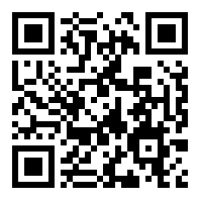
On your phone, open the file and tap Install — you may need to allow installs from unknown sources in Settings
For Android TV or Firestick, you'll need to sideload the APK. Search YouTube for "how to sideload apps on Firestick" — there are plenty of quick guides
Log in with the same email you use on the website
Browse, search, and stream — with Chromecast support built in
The app checks for updates automatically, so you'll always know when a new version is available.
How to use ShaneTV
Use the sidebar filters to browse by group or country
Click any channel card to play it in the browser
Click the circle checkbox (top-right of card) to select channels for playlist download
Use Select All / Deselect All to quickly pick or clear all visible channels
The bottom bar shows your total selected count from all groups
When ready, click Generate M3U to download a custom playlist with only your picks
Or click Download Full Playlist to get every channel in one file
What is an M3U file?
An M3U file is a playlist that contains links to live TV channels. You can load it into any IPTV player to watch your selected channels.
VLC (PC / Mac)
Open VLC Media Player
Go to Media → Open Network Stream (or Ctrl+N)
Paste the M3U file path or drag & drop the file into VLC
Your channels will appear in the playlist panel
TiviMate (Firestick / Android TV)
Open TiviMate and go to Settings → Playlists
Tap Add Playlist → Enter URL
Enter the URL of your M3U file
Channels will load grouped by category
IPTV Smarters (Phone / Tablet)
Open IPTV Smarters and select Load Your Playlist
Choose M3U URL and paste your playlist link
Give it a name (e.g. "ShaneTV") and tap Add User
Browse channels by Live TV → category
Kodi (Any Platform)
Install the PVR IPTV Simple Client add-on
Go to Settings → PVR & Live TV → General
Set M3U Play List Path to your file or URL
Enable PVR IPTV Simple Client and restart Kodi
GSE Smart IPTV (iOS / Android)
Open GSE Smart IPTV
Tap the + icon → Add M3U URL
Paste your playlist URL and save
Tap to load and browse your channels
Tip: Streams are validated hourly so your channels stay fresh. If something isn't working, try a different channel or report it as dead in the app — it'll be removed automatically.